Category / Using CHIME
When Can I Drag-and-Drop in CHIME?
Here are the key situations where you can use drag and drop within CHIME:
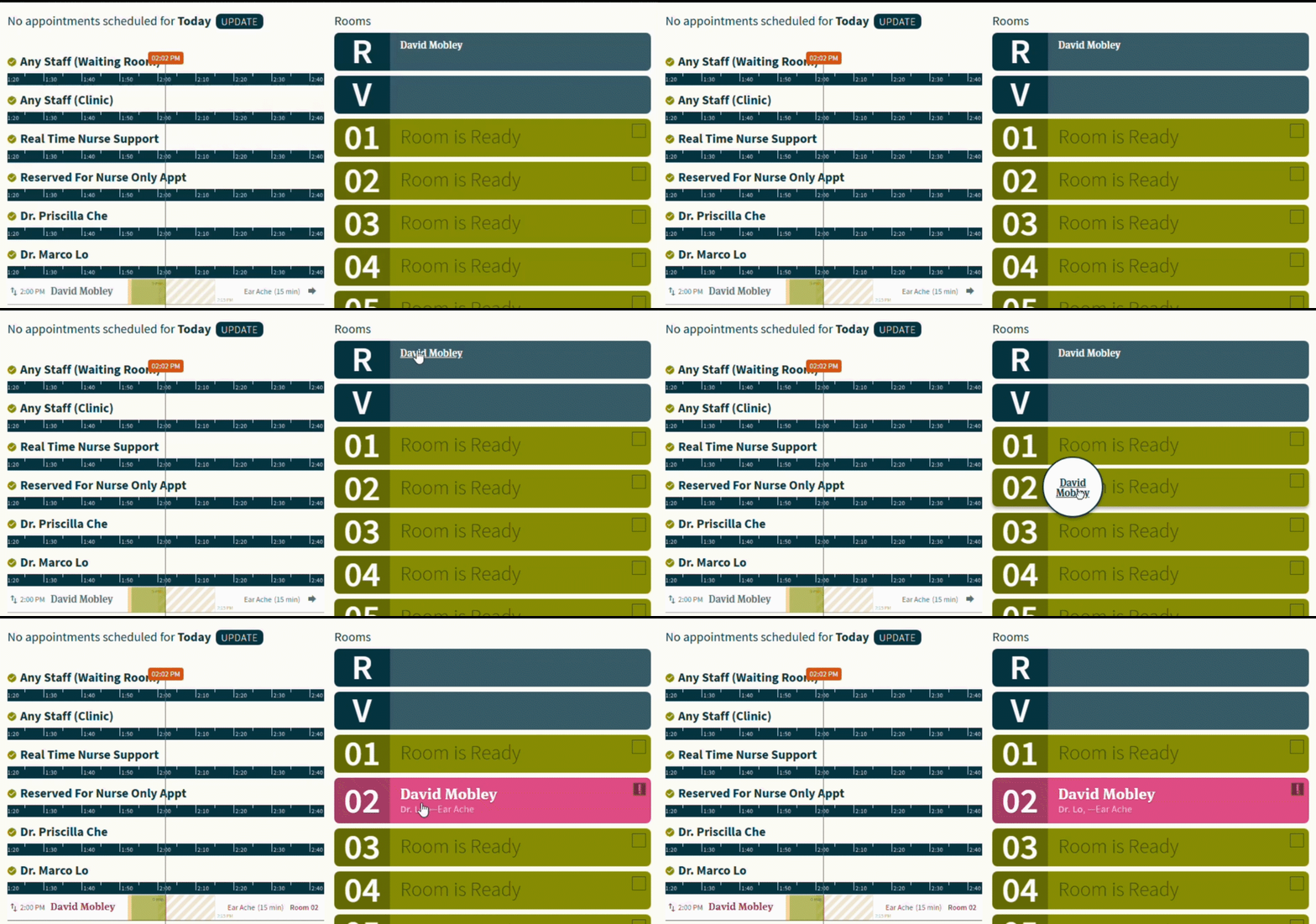
1. Waiting Room to Specific Room
Move patients from a waiting room to a designated room by dragging their name into the chosen room.
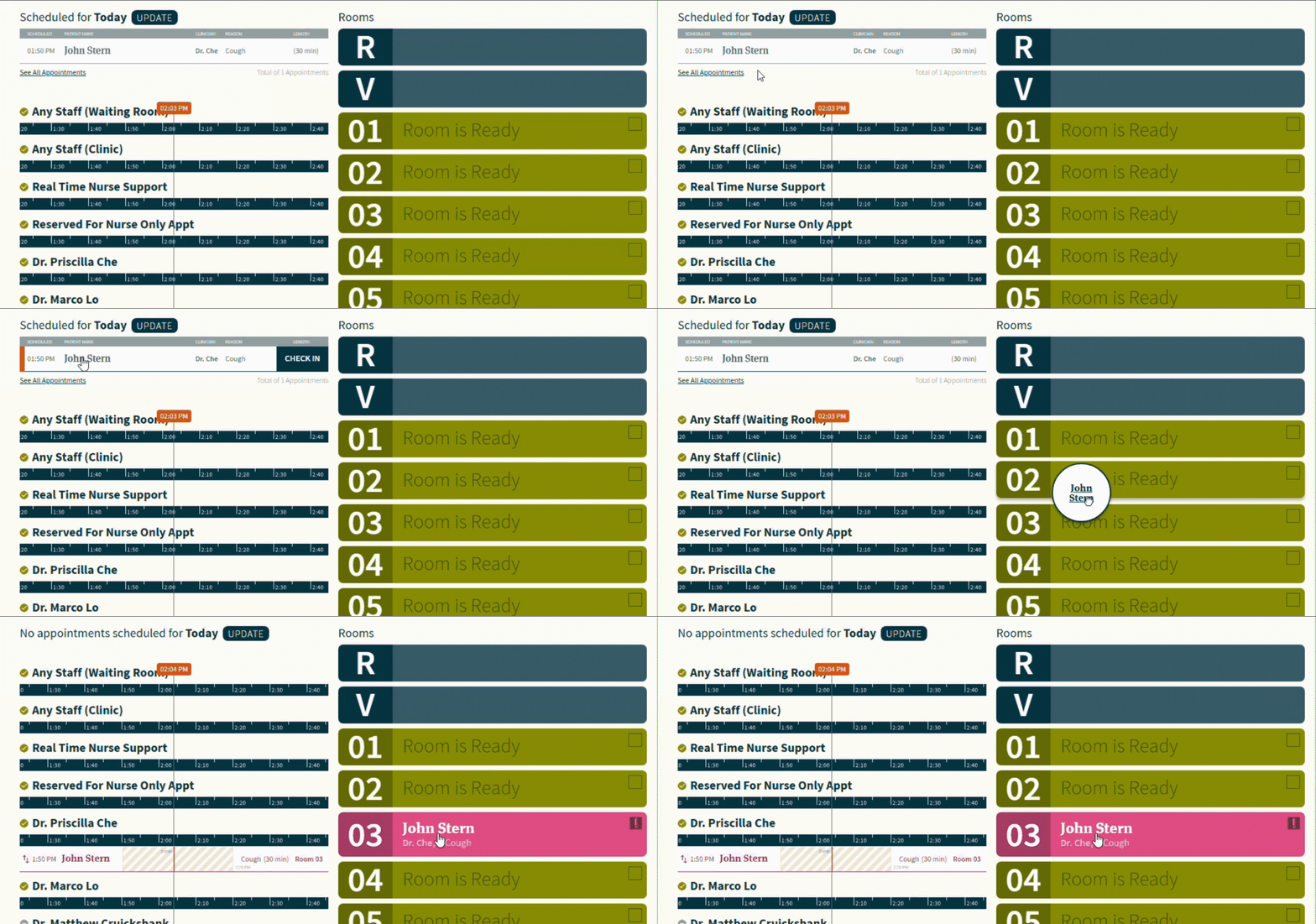
2. Scheduled Queue to Specific Room
If a patient is scheduled and needs to be assigned to a specific room, simply drag their name from the scheduled queue and place it in the appropriate room.
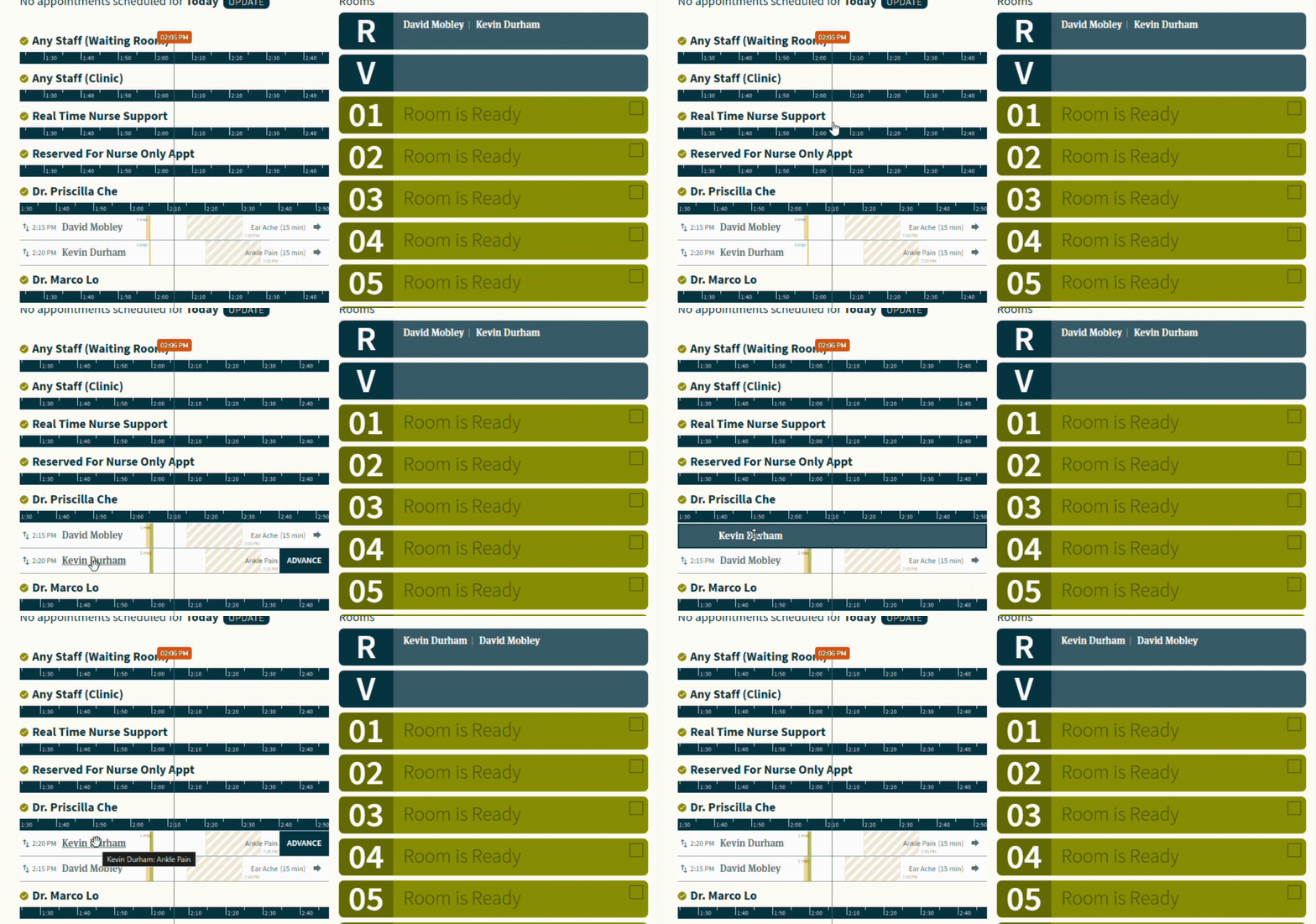
3. Patient in Clinician Queue (Reordering Within Queue)
Within the clinician queue, you can reorder patients to prioritize based on urgency or other criteria.
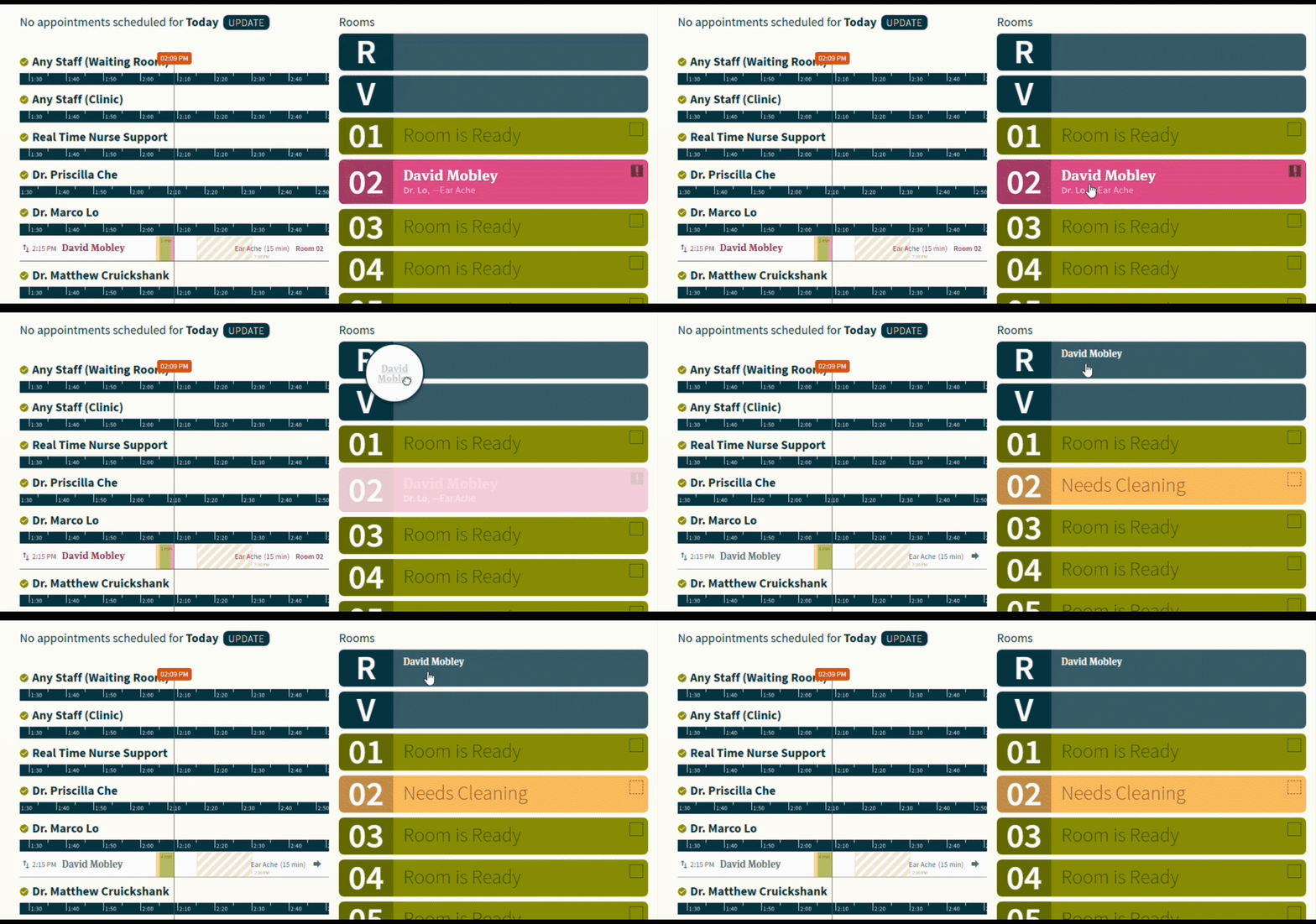
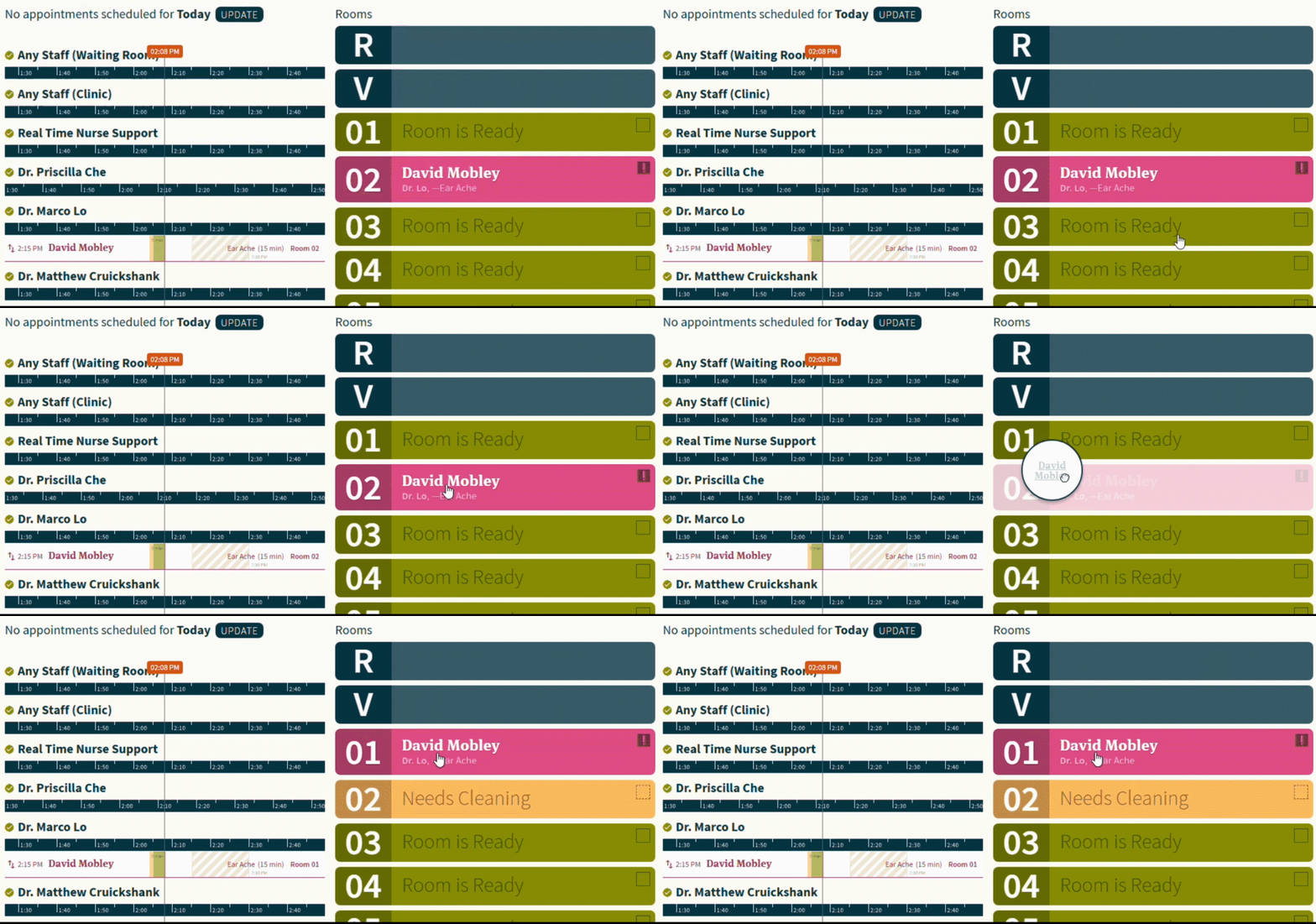
5. Patient in Room to Specific Room
If a patient needs to be transferred to a different room, simply drag their name from the current room and drop it in the new room.
The previous room will automatically be marked for cleaning. This acts as a safety measure to keep the room reserved if the patient was moved accidentally, while also ensuring proper sanitation if the room was partially used prior to the transfer. It allows time for the patient and staff member to move between rooms, and to avoid situations where a new patient walks into the room while the current patient is potentially not ready.
Note: If you find yourself frequently moving patients between rooms, please reach out to support@chimeclinic.com so that we can update your configuration to room patients more appropriately by default.
4. Patient in Clinician Queue (To Another Clinician Queue)
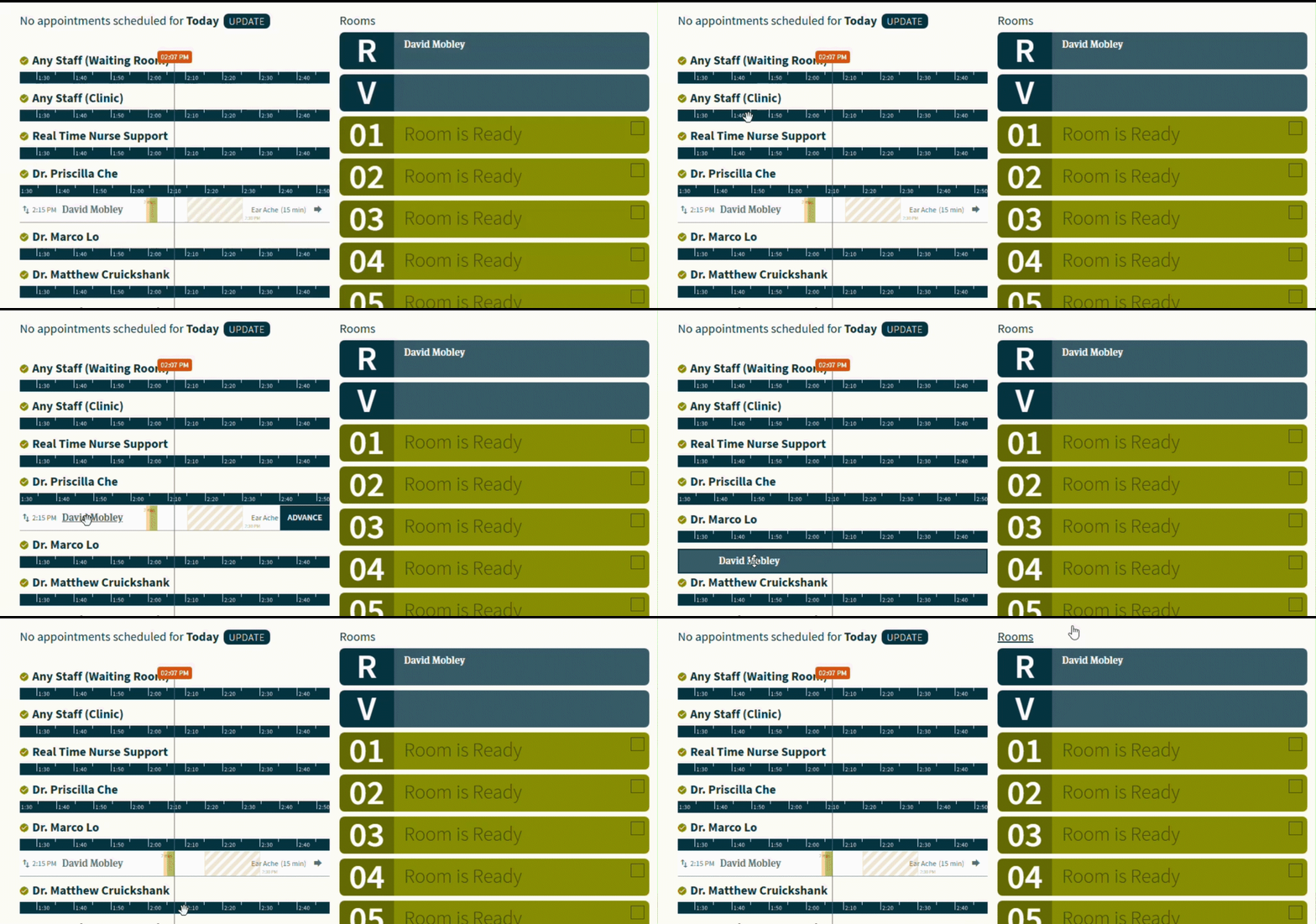
If a patient needs to be reassigned to another clinician, you can drag their name from one clinician's queue to another.
6. Patient in Room to Waiting Room
You can easily move a patient back to the waiting room from an assigned room. Just drag their name from the room to the waiting area to update their status.