
Features / Configuration Level / Collaboration & Communication
Room Locking & Reservations
By default, users have considerable flexibility when managing patient visits and exam rooms in CHIME. This flexibility is useful in most situations because it allows clinic staff to override CHIME’s configuration when circumstances change. However, some clinics may wish to restrict access to rooms in certain circumstances.
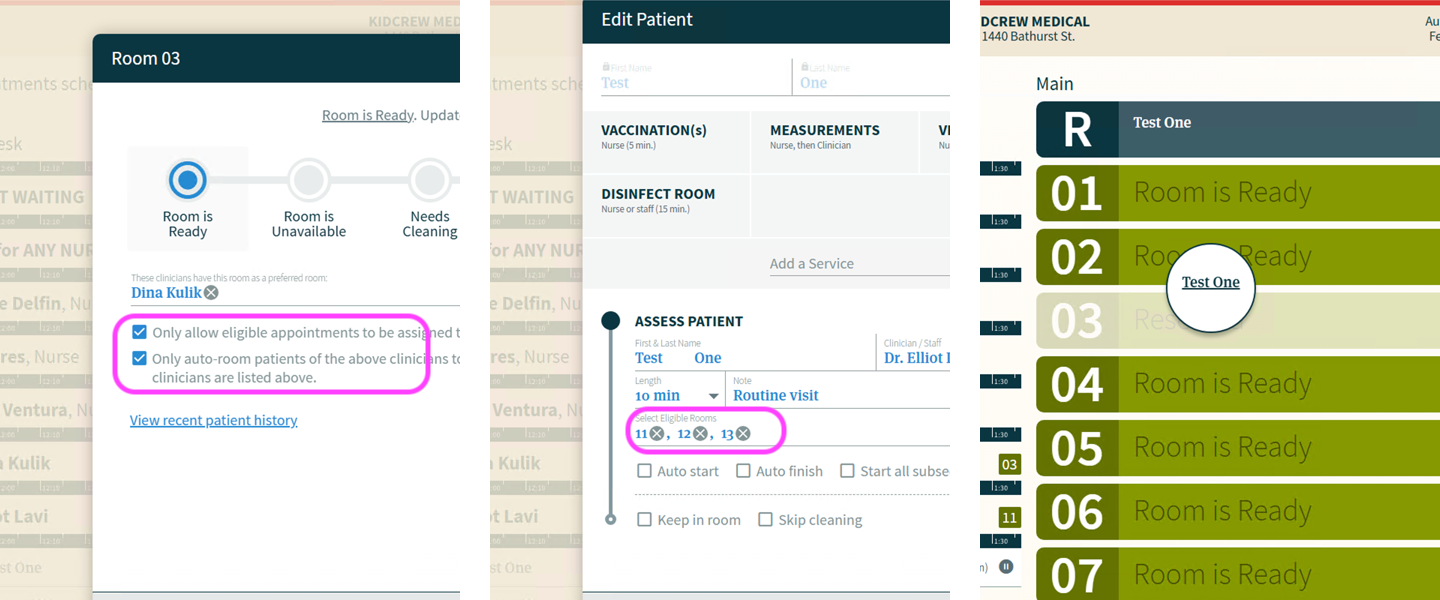
A user can manually drag a patient visit into any room (clean, dirty, or unavailable rooms are all fair game). The only exception is a room that is currently occupied by another patient. However, some clinics may wish to restrict access to rooms for specific clinicians, appointment types, procedures, or other specialized uses.
CHIME offers two per-room settings that allow users to do just that: Room Locking and Clinician Reservations. Both settings live in the room’s details window that you can access by clicking the room number on the CHIME Dashboard.
Room Locking
When a room is locked, only visits that are explicitly eligible to use that room can be assigned to it. This restriction applies to both CHIME’s automatic room assignments and manual drag-and-drop actions performed by users. For example, if a step in an appointment’s flow does NOT include Room 1 in its eligible-room list, staff won’t be able to drag that appointment step into Room 1, nor will CHIME auto-room that step into Room 1. This helps ensure that locked rooms remain available only for those appointments which are explicitly eligible to be in those rooms.
Clinician Reservations
The second setting is lighter, and shapes only auto-rooming. A room can be reserved for clinicians who list it as a preferred room. Appointments belonging to any other clinician will not be auto-roomed into it. If a room has been reserved for a clinician:
CHIME will auto-room a patient into that room only if the clinician for that appointment has it on their preferred-rooms list
Appointments of clinicians who do not have the room set as a preferred room will be sent elsewhere
If no clinician at all has the room on their preferred list, the reservation quietly does nothing
One thing to note, manual drag-and-drop is not blocked by the reservation on its own. You will have to combine it with Room Locking if drag-and-drop also needs to be restricted.
If the reservation setting is active and at least one clinician has the room set as preferred, the room tile will say “Reserved” instead of the usual “Room is Ready”. Staff can tell at a glance which rooms are set aside and which are open to anyone.
When the reserving clinician is Out of Clinic
CHIME only counts clinicians who are currently on-site (statuses Available or Temporarily Unavailable) toward the reservation display. The moment the reserving clinician switches to Out of Clinic, the reservation is released and the room is treated as open to everyone again. It will return to being reserved as soon as the clinician is back on-site.