
Features / Configuration Level / Room Sharing
Maximum Number of Patients Assigned / Waiting in Exam Rooms
For any given clinician, CHIME can be configured to limit the maximum number of patients who are waiting in exam rooms at the same time.
By default, CHIME will usually auto-room a maximum of 2 patients per clinician. This helps balance room use across the clinic so that one clinician’s patients do not take up too many rooms, especially when patients arrive early. It also helps reduce situations where patients are left sitting alone in exam rooms for long periods of time.
For example, a clinic may choose to allow a maximum of 2 patients per staff physician, but only 1 patient per resident. Another real-world example is when a clinician is running behind. Without a limit in place, CHIME might continue assigning that clinician’s patients to rooms, resulting in 4 or 5 patients waiting in rooms unnecessarily. This can block other clinicians from using those rooms and create frustration for both staff and patients.
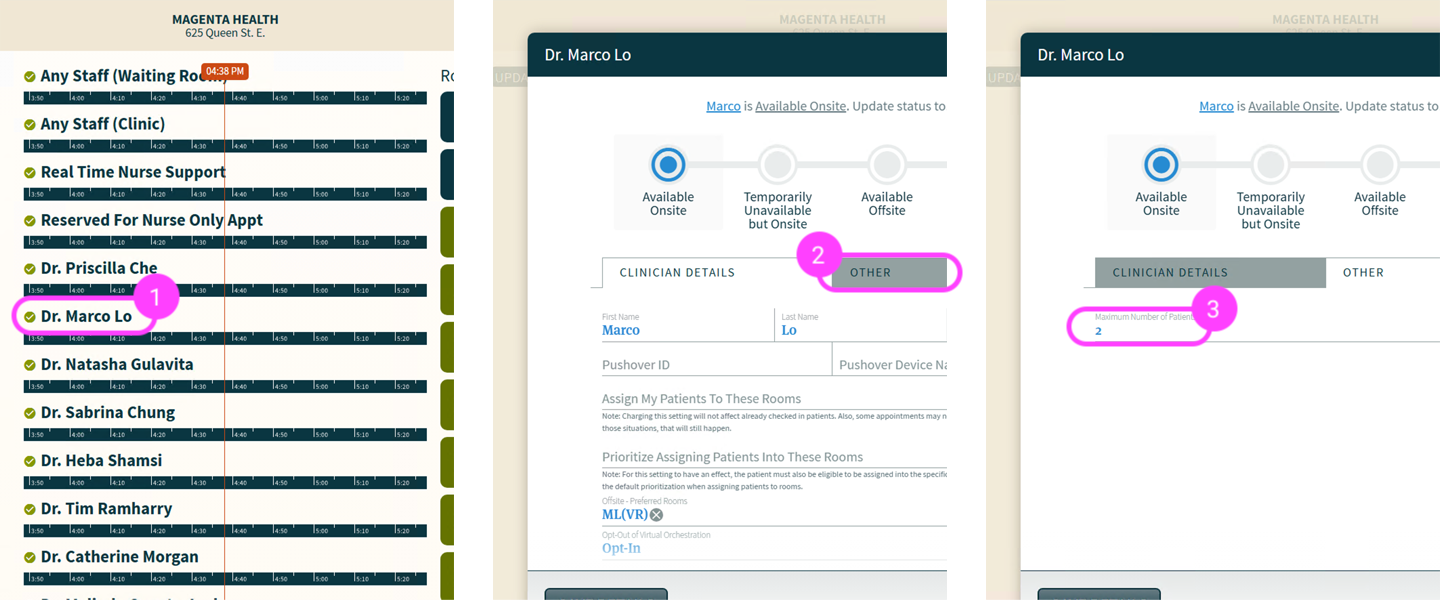
How to Change This Setting
The maximum number of patients assigned / waiting in exam rooms is changed on a per-clinician basis. It does not reset automatically after being changed. If you are making a short-term adjustment, you will need to change it back later.
Click on the clinician’s name in the middle column (Admitted Queues) on the CHIME Dashboard
In the dialog box that pops-up, click on the Other tab.
Change the number to your preferred maximum.
Click Save Details.