
Tutorials / Everyday
Clear Today’s Schedule
Sometimes it may be necessary to clear today’s appointments from “Scheduled Column” in CHIME. This is easy to accomplish, read below for step-by-step instructions.
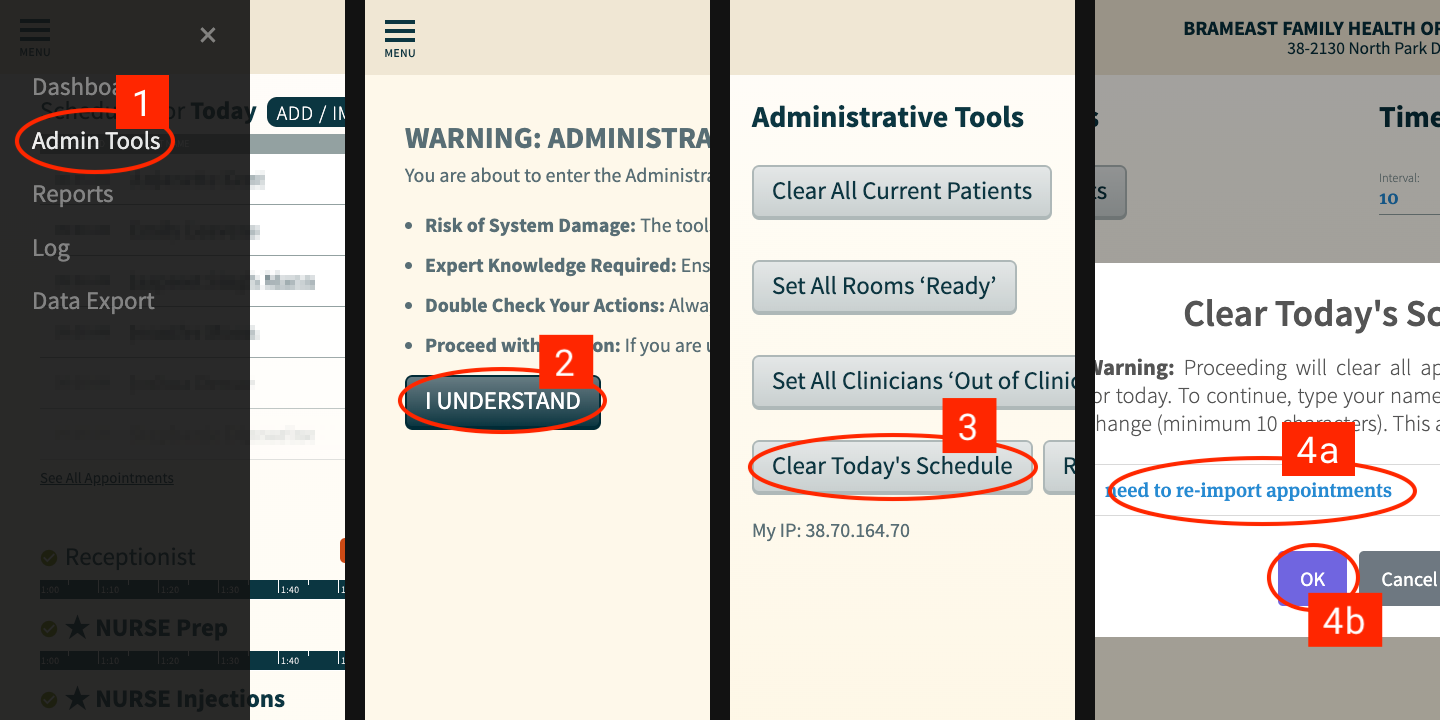
In the CHIME Dashboard, click on the “Menu” button in the top left corner
From the menu that pops-up click on the “Admin Tools” option
Once in the Admin Tools area of the CHIME Dashboard, read through the warning message and click the “I UNDERSTAND” button
Find the “Clear Today’s Schedule” button and click it
You will be presented with a warning and an input field asking you for the reason that you are clearing today’s schedule; type in your name and reason (e.g. “Jane Smith: updating room preferences”) then click the “OK” button
That’s it. If you go back to the main CHIME Dashboard, all scheduled appointments for today should now be cleared.
If you need to re-import appointments after clearing the schedule, you can do by clicking “Import Today’s Schedule” or using the “Update” button in the main flow view.
Since this function does not interfere with patients who have already checked in, it’s safe to do this at any point during the day. Re-importing appointments will usually take less than 1 minute.