Tutorials / Hardware Tutorials / CHIME Tablets
How to Factory Reset & Reinstall CHIME on a Tablet
These instructions should only be followed at the express recommendation of your Account Manager.
Step 1 : Access the Tablet Settings
Tap on the tablet quickly 4 times
Use the password provided to you by your Account Manager
You’ll then be in the “kiosk” application settings page
At the top right, there will be a small Gear icon… Tap it
You should now be in the tablet Settings page
Step 2 : Do a Factory Reset
Scroll to the General Management option
Tap Reset
Tap Factory data reset
Confirm and proceed (this will take a few minutes)
Step 3 : Reinstall CHIME
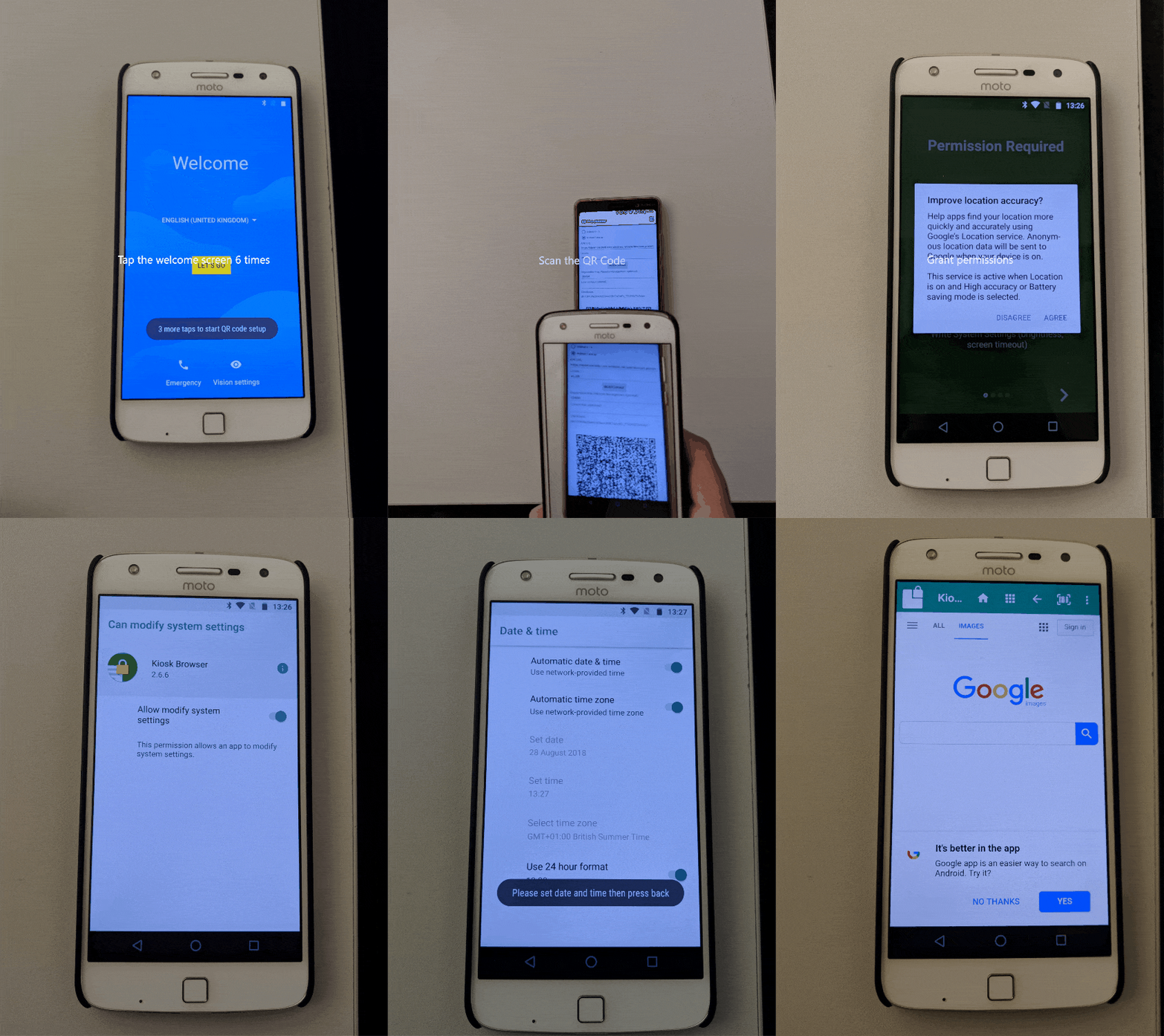
Once the tablet is reset, do NOT set up the tablet normally.
Instead, tap the welcome screen 6 times until a QR wizard starts
Use the QR code provided to you by your Account Manager
You will then be invited to connect to a WiFi network, ensure you do so
Your device will then download and install an application called "Kiosk Browser”
Follow the on-screen steps, including granting the application all permissions requested.
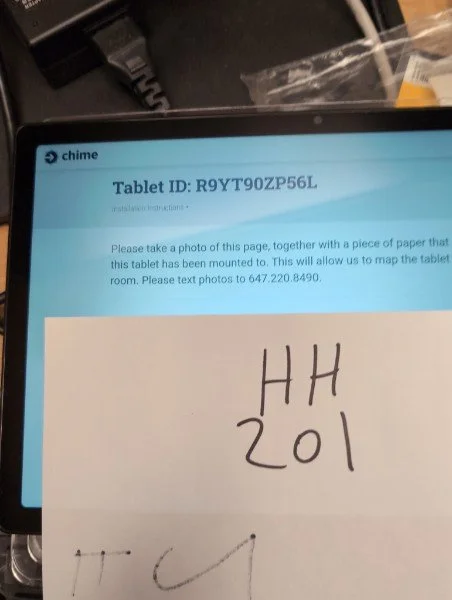
Once finished, the tablet will present you with instructions to text your Account Manager a photo.