Tutorials / Troubleshooting Tutorials
Troubleshooting Tablet Power Issues
Occasionally a tablet might not stayed powered — if so, CHIME support might ask you to do some preliminary troubleshooting using these instructions.
Understand the System Components
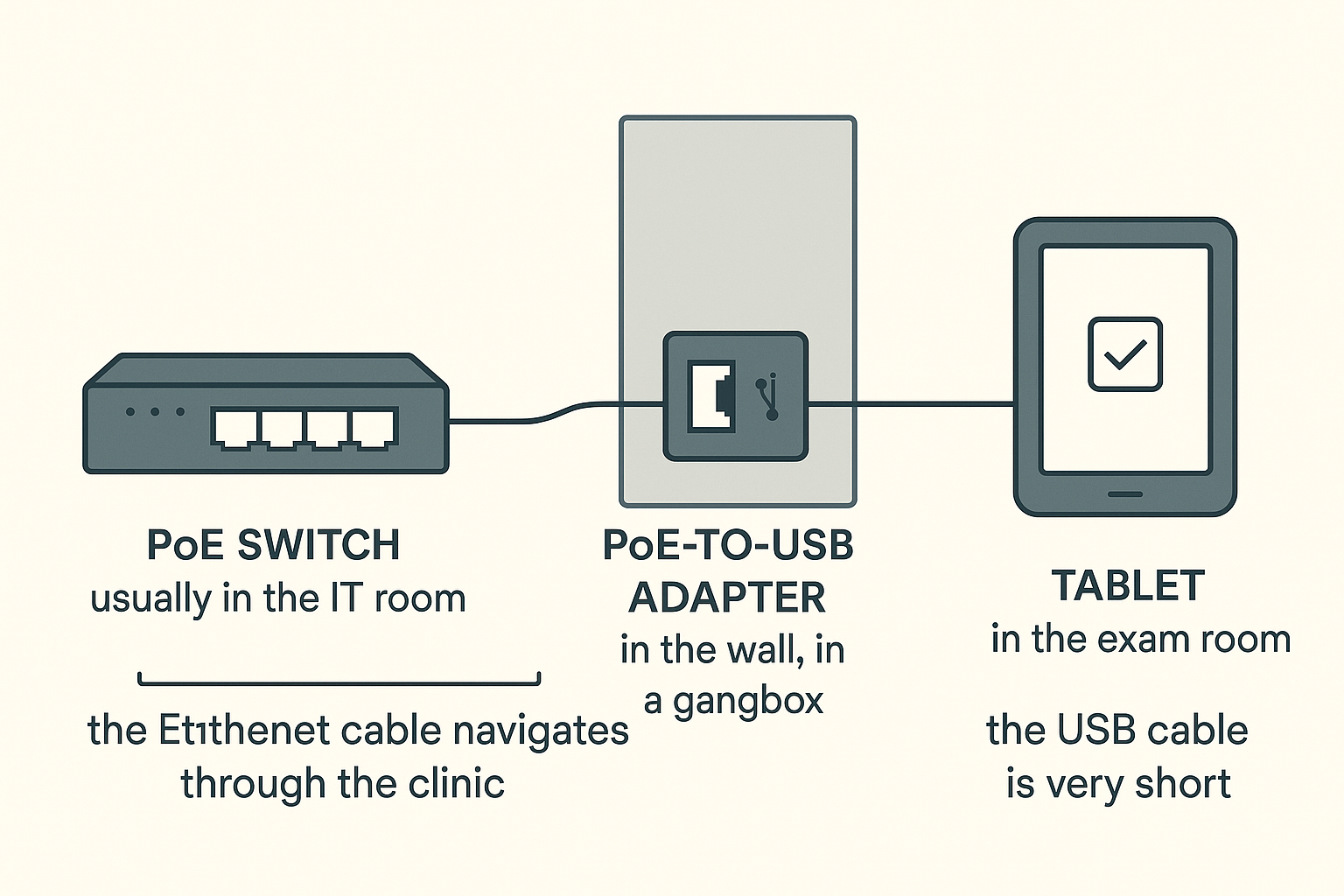
In most clinics, each exam-room tablet relies on four components working together:
PoE Switch (usually in your IT room) – injects power into the network cable
Ethernet Cable – runs from the IT room to outside your exam room
PoE-to-USB Adapter – converts PoE power into 5V USB power for the tablet
The Tablet – receives 5V power and stays on
If the tablet is not powering up or frequently shuts off, follow the steps below to identify which component may be causing the issue.
1. Confirm the Tablet Itself Works
Before investigating the network or power components, test the tablet on its own.
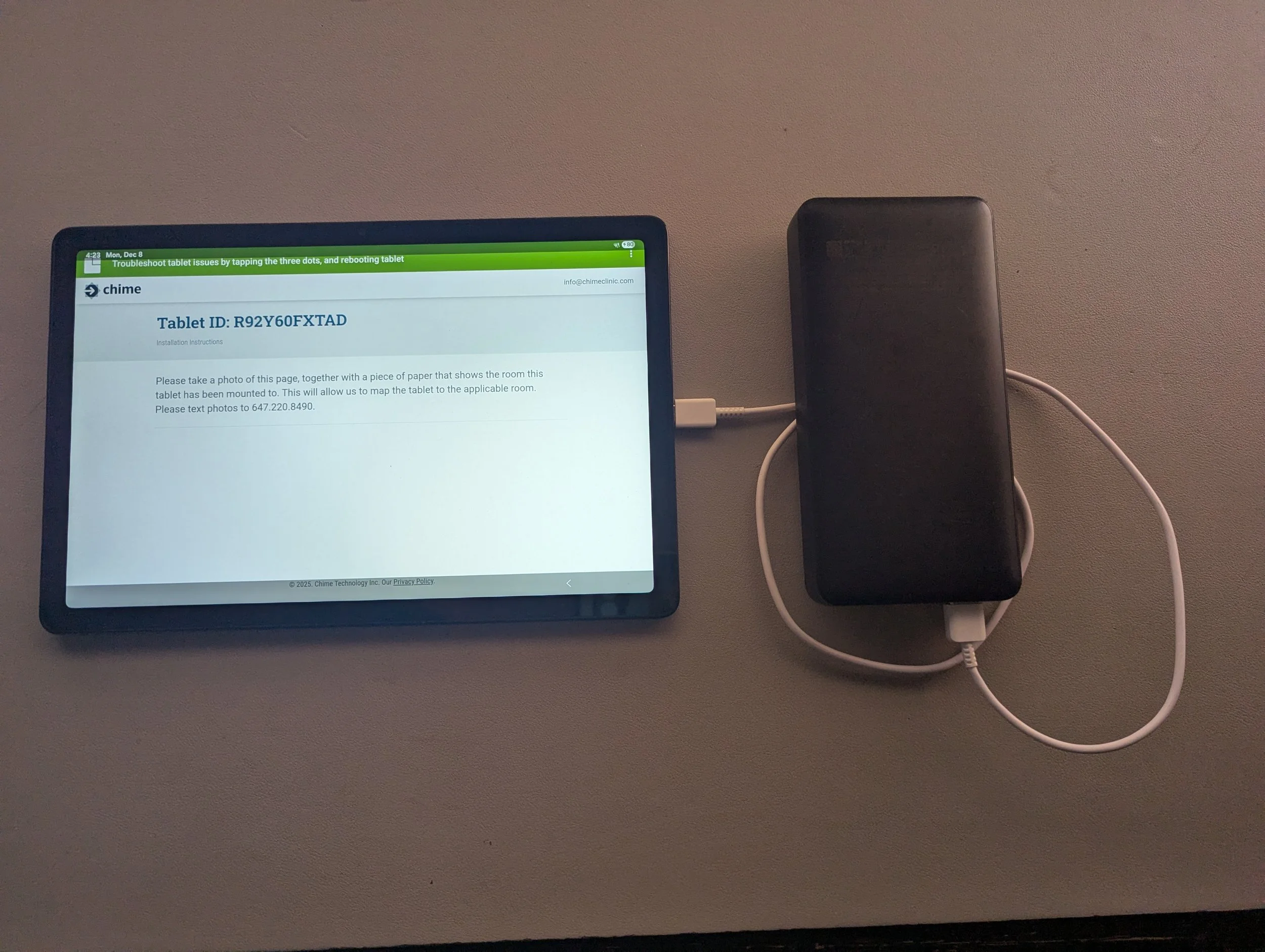
Disconnect the tablet fully from the PoE adapter.
Plug it into a standard wall charger or battery pack using an USB cable.
Ensure:
The charging icon appears
The tablet powers on
The battery level increases over 5–10 minutes
If the tablet does NOT charge from a wall charger:
→ The issue is with the tablet or its USB port, not the PoE system.
If the tablet seems to work fine, proceed to the next step.
2. Check the PoE Adapter (the small “converter” box)
This is the most common point of failure because it handles conversion from PoE to 5V USB.
Test: Swap the Adapter Between Rooms
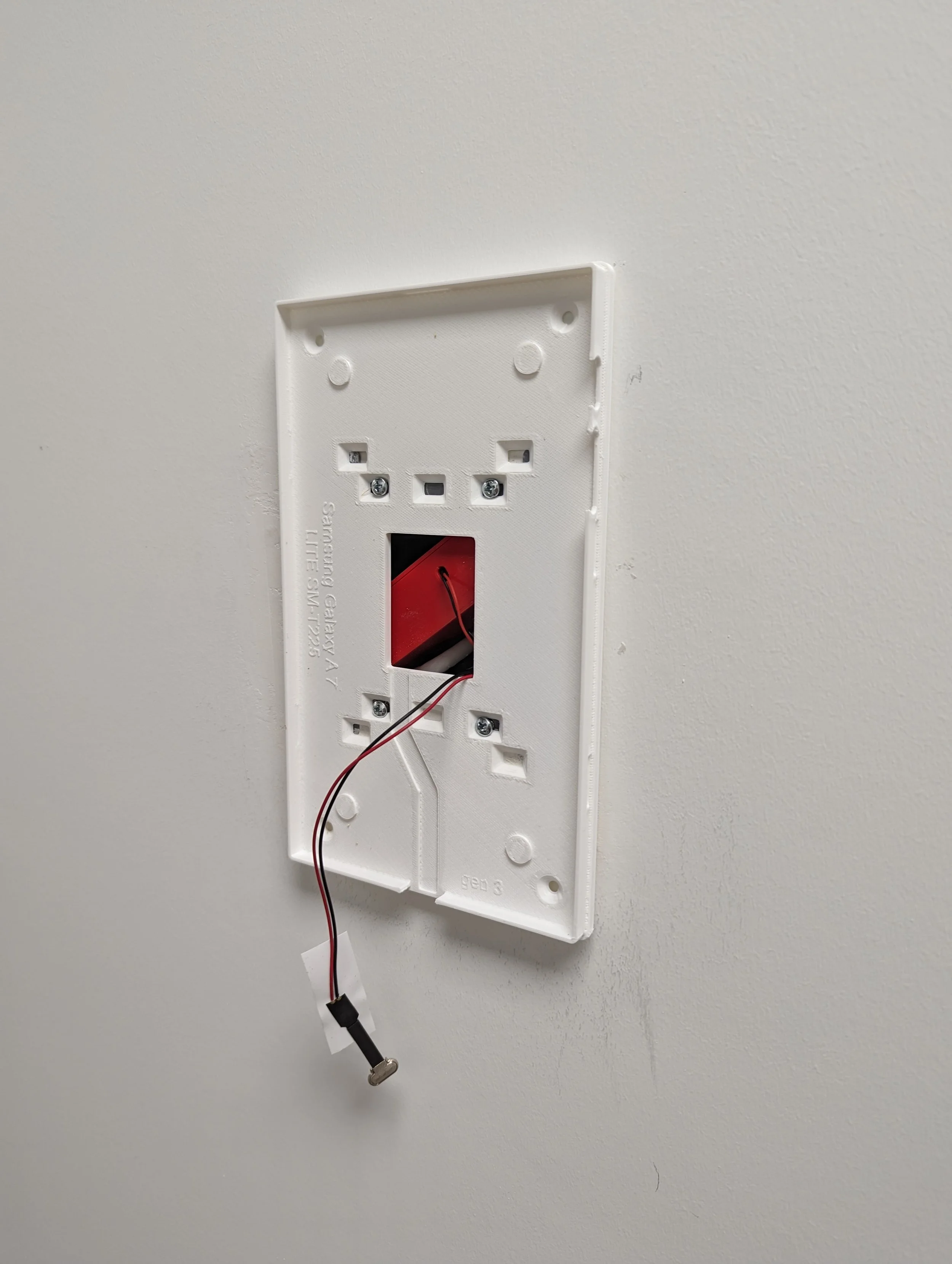
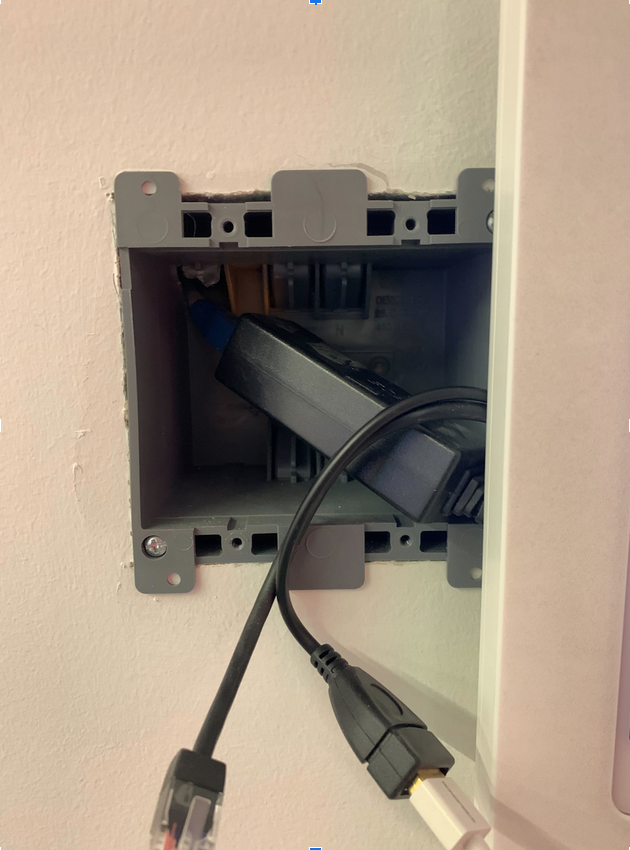
Identify a given room’s PoE adapter. It is usually located in the gangbox in the wall, behind the tablet. It’s exact appearance can vary.
Swap it with the adapter from a room where the tablet works normally.
Observe what happens:
A. If the problem moves to the other room AND the working adapter fixes the problem in the original room
→ The original adapter is faulty and needs replacement.
B. If the problem stays where it is (i.e. neither adapter works in the problematic room AND the other room continues to work with the moved adapter
→ The issue may be the ethernet cable or the PoE switch port. Reinstall the items where they were originally located and contact CHIME support for further assistance.
C. If BOTH rooms are now having problems
→ That’s unexpected. Reinstall the items where they were originally located and contact CHIME support for further assistance.