
Tutorials / Logs or Stats Tutorials
How to Download Logs
CHIME by default will keep track of most human interactions. In addition to viewing the logs within CHIME, a summary is available for download to allow for further manipulation within a spreadsheet application of your choice. If the desired data is not available within the exported data, please contact your Account Manager. More data can be supplied if available. Further details on the data contained within the export and techniques to analyze the data can be found here.
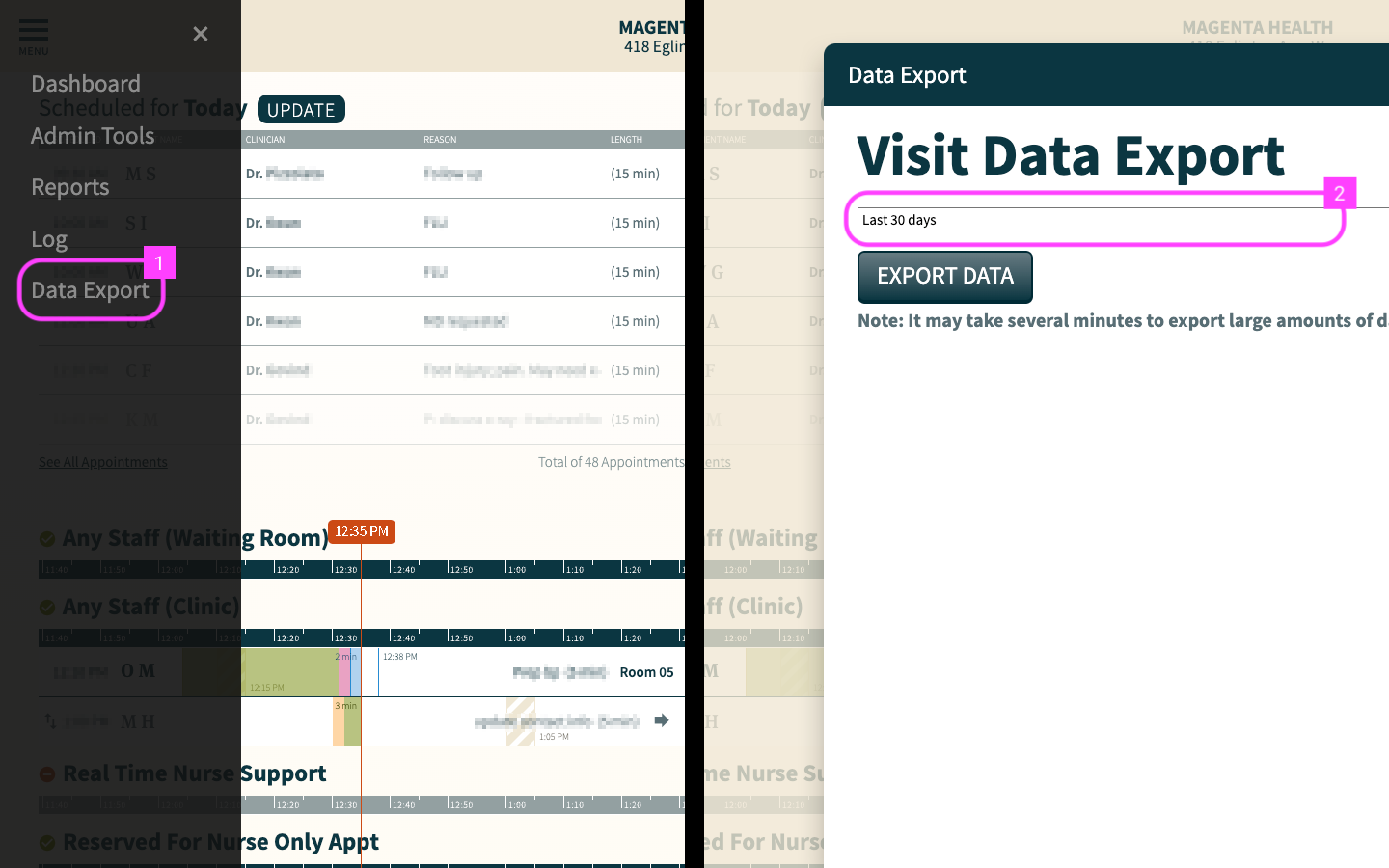
Step 1: Choose Data Export
Within your CHIME dashboard, click the “hamburger” menu icon at the top left of the flow view, then choose “Data Export”.
Step 2: Select the Desired Window of Time and Export Data
30 - 365 days is possible. Additional options are possible if necessary. Contact your Account Manager for assistance