Tutorials / Everyday Tutorials
Importing CSV files into CHIME
As previously mentioned CHIME supports manually importing appointments from your EMR. This page contains step-by-step instructions.
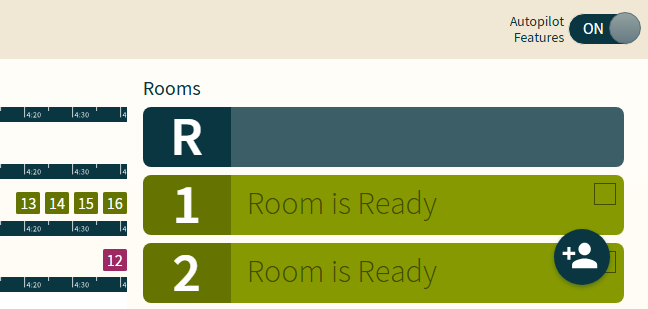
If you see an UPDATE button instead of ADD/IMPORT, clicking on the round “+” button at the lower right corner will do the same:
Before you can import files…
You should have exported today’s appointments from your EMR. If not, follow one of these instructions:
Instructions for exporting CSV files from Telus CHR
Instructions for exporting CSV files from Telus PS
Instructions for exporting CSV files from Accuro QHR
Ready to import?
Follow these steps:
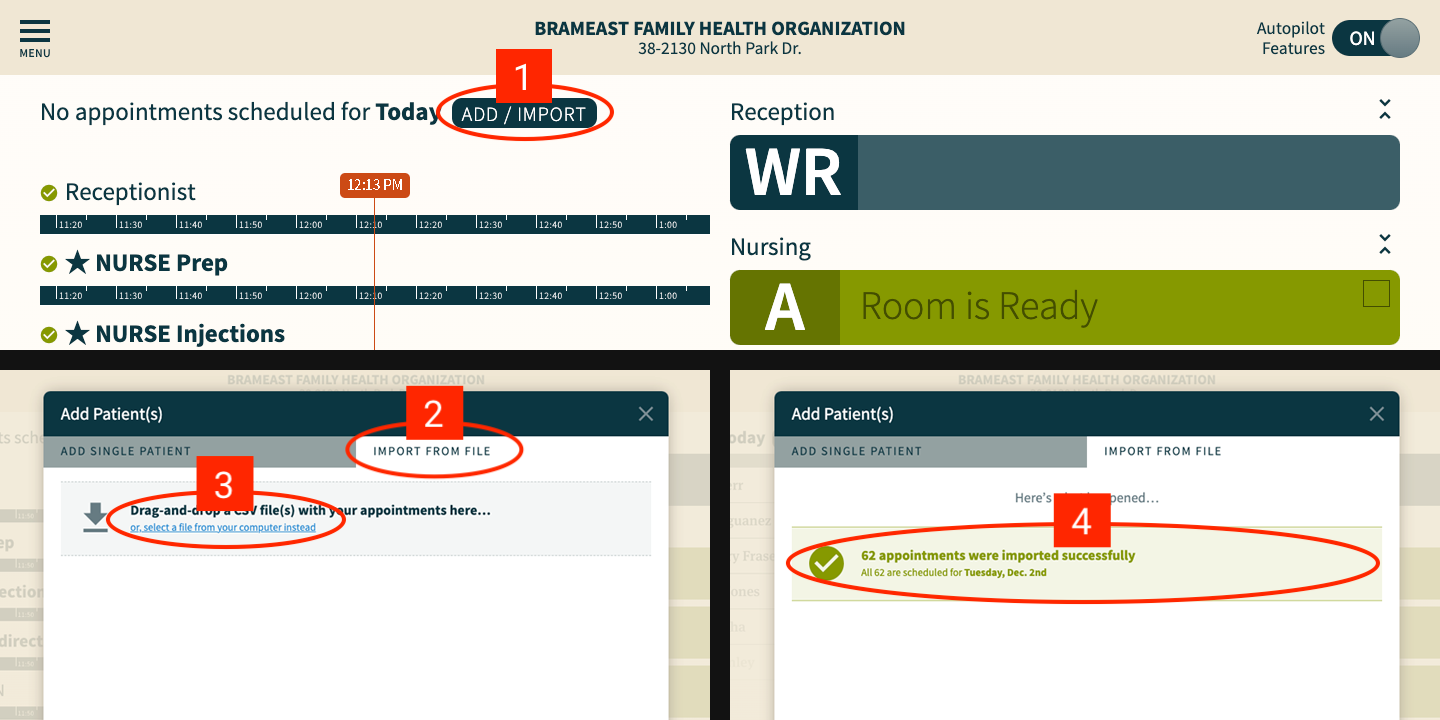
Click the Add / Import button at the top of the “Scheduled Column” on your CHIME dashboard. An Add Patient(s) pop-up will appear.
Click on the IMPORT FROM FILE tab at the top right.
Two options here:
If you only have one CSV file to import (e.g. from Telus CHR or Accuro QHR), you can simply drag-and-drop your CSV file(s) into the pop-up.
If you have two files to import (e.g. from Telus PS) please use the “Select a file from your computer instead” option because dragging and dropping multiple files does not always work.
Done!